Documentation
Everything you need to monitor and control your Bitmain Antminer fleet from anywhere — no port forwarding, no VPN.
Overview
AntminerTools is a cloud dashboard for Bitmain Antminer miners. You run a small connector agent on any PC or Raspberry Pi on your farm’s network; it makes a secure outbound connection to our cloud and relays commands to your miners. From your browser or phone you then get live hashrate, temperatures, alerts, remote reboot, profitability and more — without opening a single port on your network.
The three pieces:
- Your miners — stay on your private LAN, untouched, running stock Bitmain firmware.
- The connector agent — a lightweight program on a farm PC/Pi that talks to your miners locally and tunnels out to the cloud.
- The dashboard — where you watch and control everything, from any device.
Getting started
- Create a free account at antminertools.com/register.
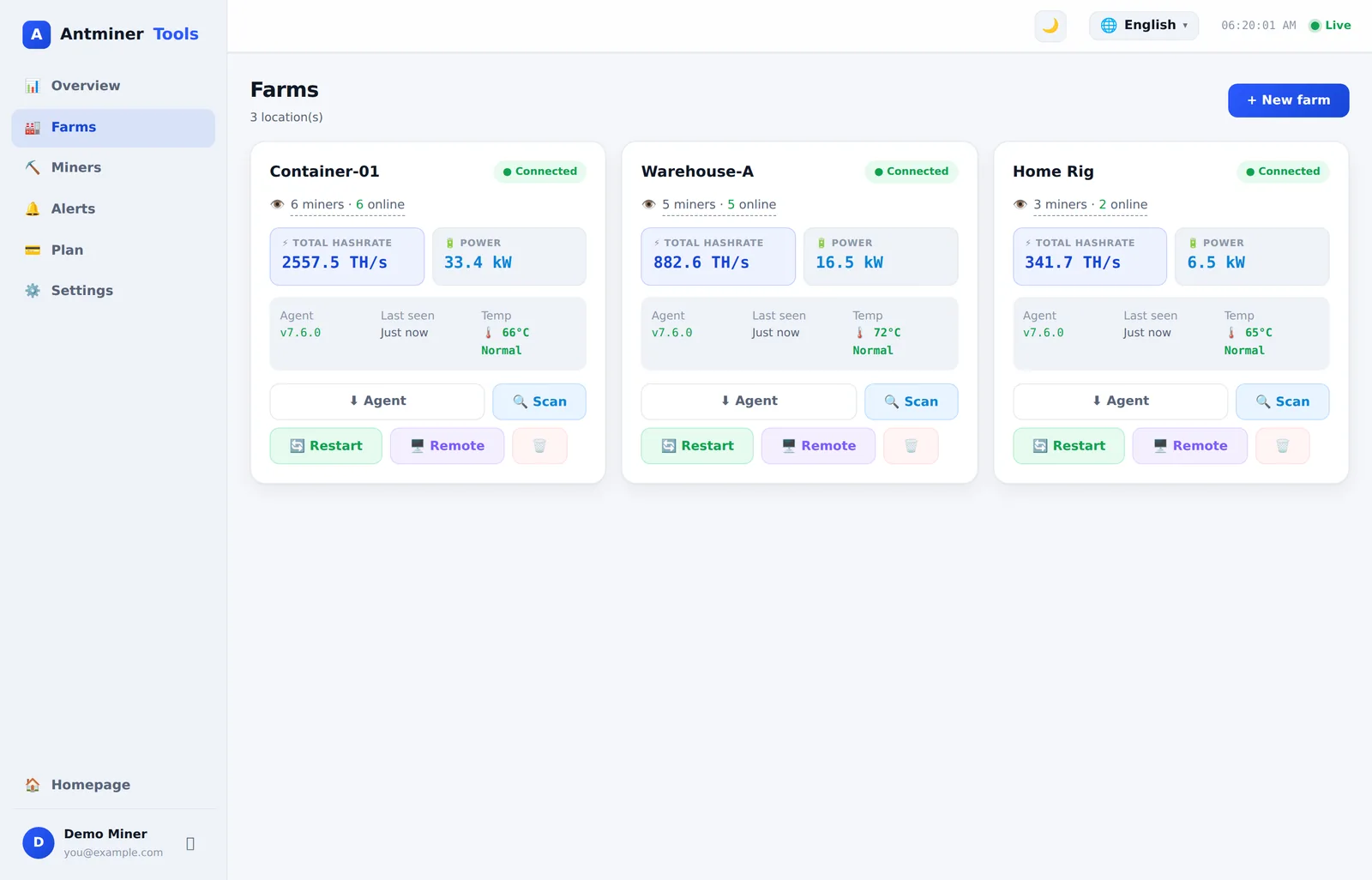
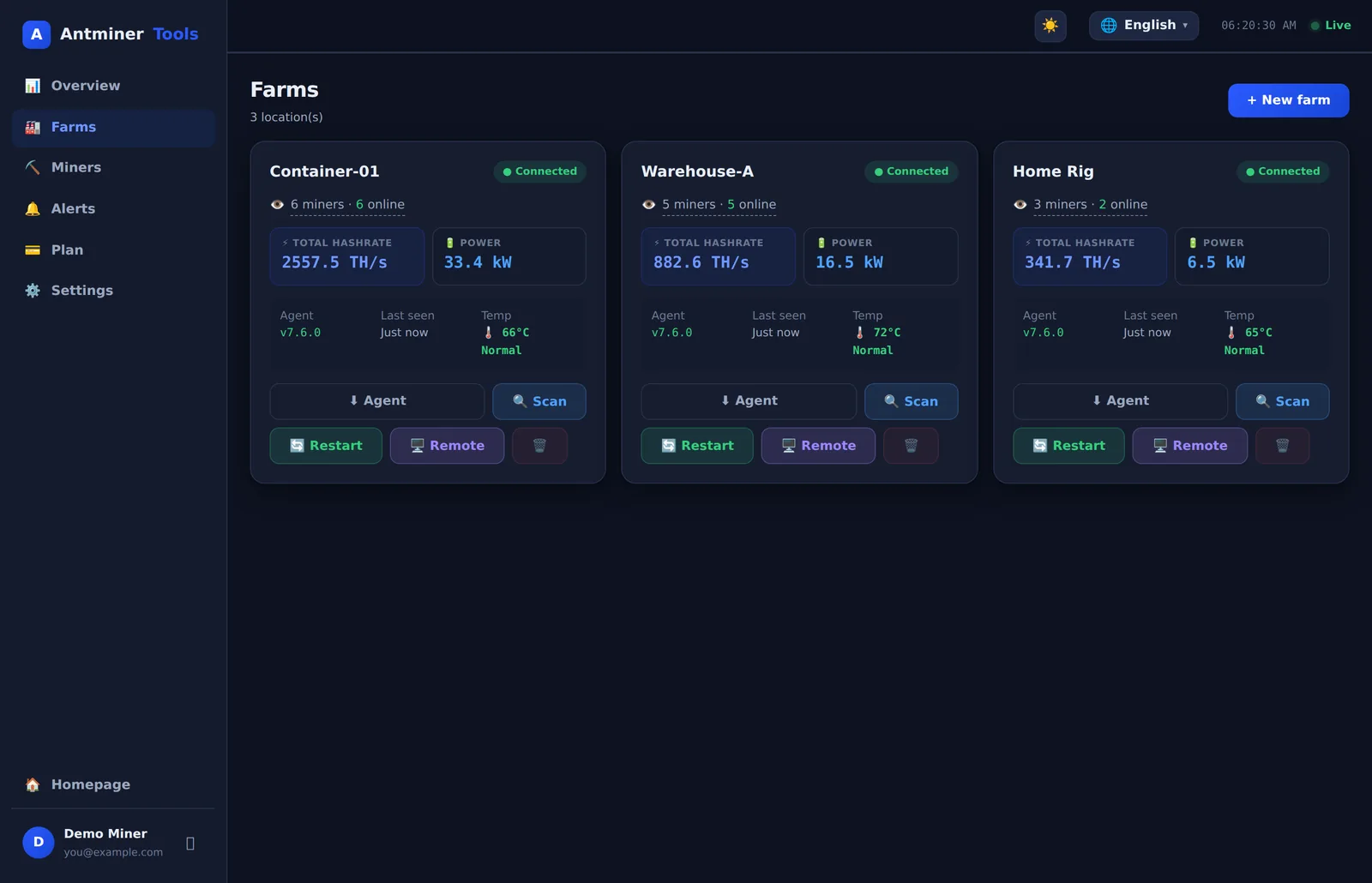
- Create a farm — go to Dashboard → Farms → “+ New farm”. A farm represents one physical location. Each farm gets its own secure token.
- Download the agent — click “⬇ Agent” on the farm card, then “📦 Download agent ZIP”. It comes pre-configured for that farm.
- Run the agent on any PC or Raspberry Pi on the same network as your miners (details below). The farm card flips to ● Connected within seconds.
- Scan the network — click “🔍 Scan” and add the miners it finds.
The connector agent
The agent is a single lightweight program. It talks to your miners over the local network (Bitmain’s web API) and maintains one encrypted outbound connection to AntminerTools. It never accepts incoming connections, so there is nothing to port-forward and nothing exposed to the internet.
Installing on Windows
- Unzip the downloaded folder anywhere (e.g. Desktop).
- Double-click
START_AGENT.bat. - Python and the required libraries install automatically the first time. Keep the window open — or let it run in the background; it re-launches on every login.
Installing on Linux / Raspberry Pi
cd AntminerTools-Agent-YourFarm
python3 antminer_agent.py
Python 3.8+ is required (pre-installed on Raspberry Pi OS). Dependencies install automatically.
Auto-start on reboot
The agent installs itself to start automatically after a reboot — the Startup folder on Windows, and a systemd service (or a cron @reboot job) on Linux and Raspberry Pi. If the farm PC loses power or restarts, the agent comes back on its own.
Automatic updates
When we release a new version, running agents download it, verify it, keep a backup, preserve your token and restart into the new version — you never touch the farm PC again. Old versions are cleaned up automatically.
Checking status
On the farm PC you can run python antminer_agent.py --status to see whether it’s connected, its version and uptime.
Finding your miners
Once the agent shows Connected, click “🔍 Scan” on the farm card. AntminerTools auto-detects your subnet from the agent and scans it for Antminer devices.
- Watch the live counter — “⛏ 1 found… 2… 3…” — as it sweeps each IP.
- When done, you get a table of every miner found: IP, model, worker name (from the pool), serial and MAC.
- Rename any of them, then click “➕ Add all new” (or add one at a time).
You can also add a miner manually (Miners → “+ Add miner”) if it’s on a different subnet — just enter its IP, port and login. The default Antminer login is root / root.
Monitoring
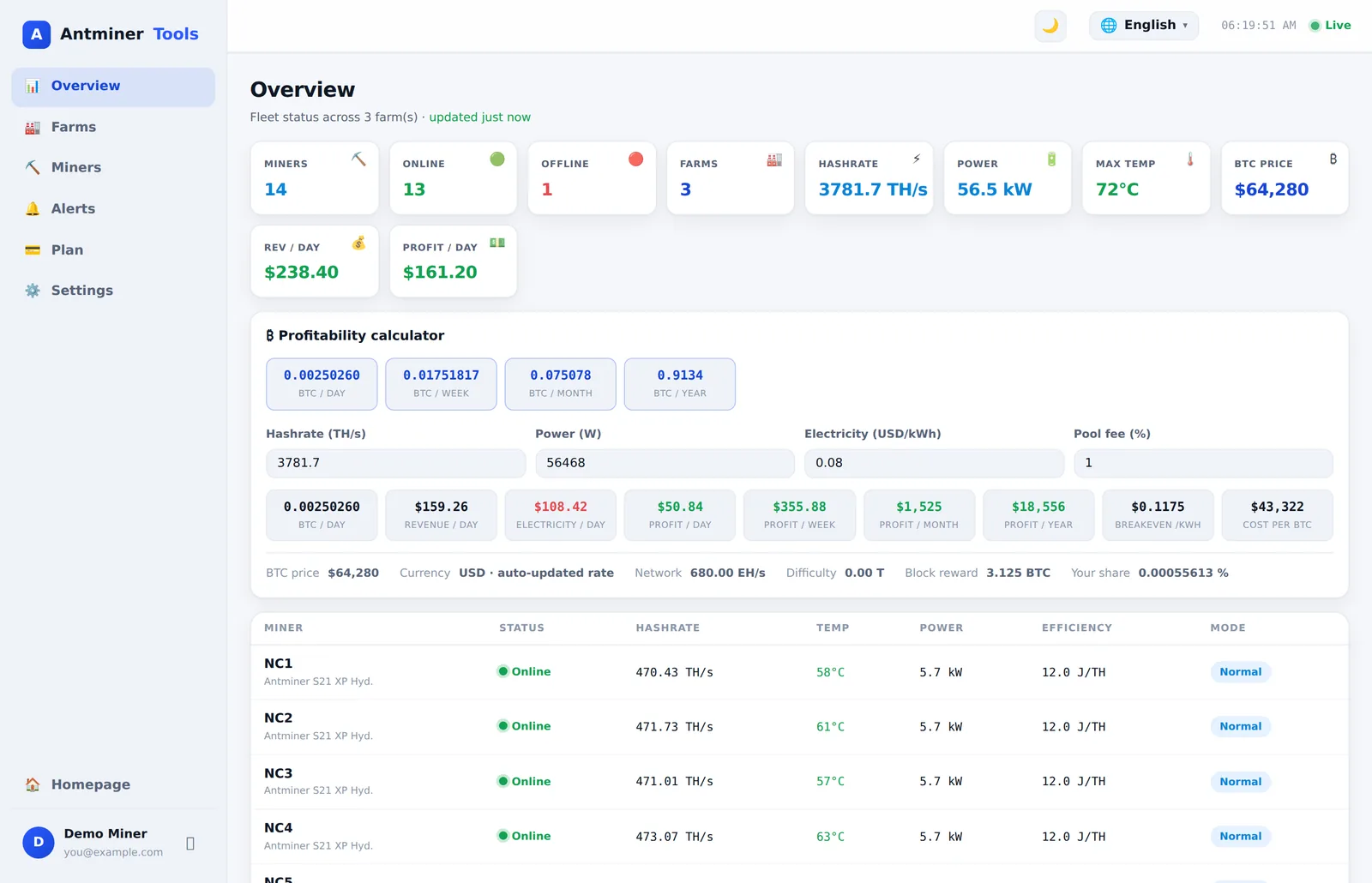
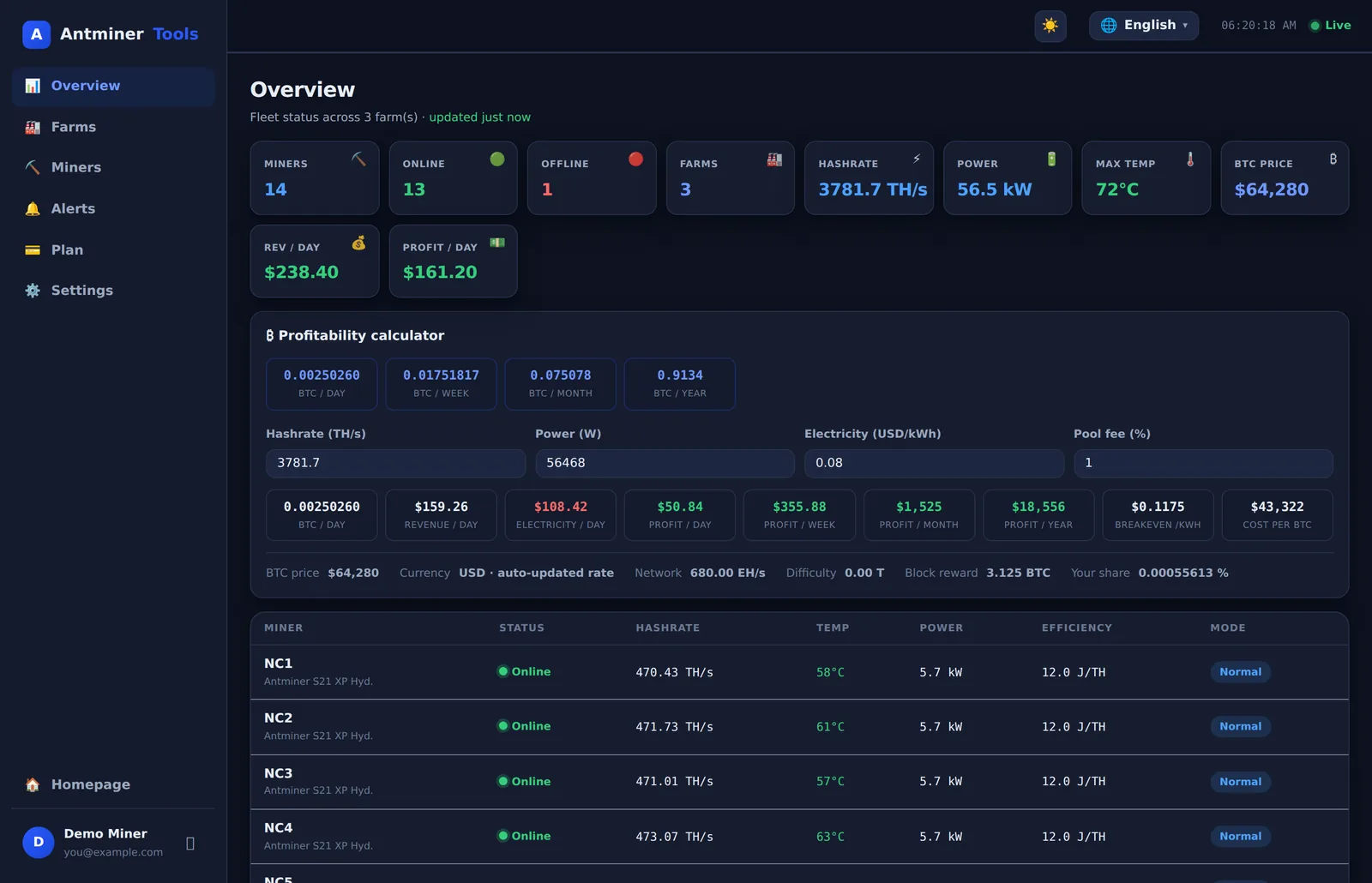
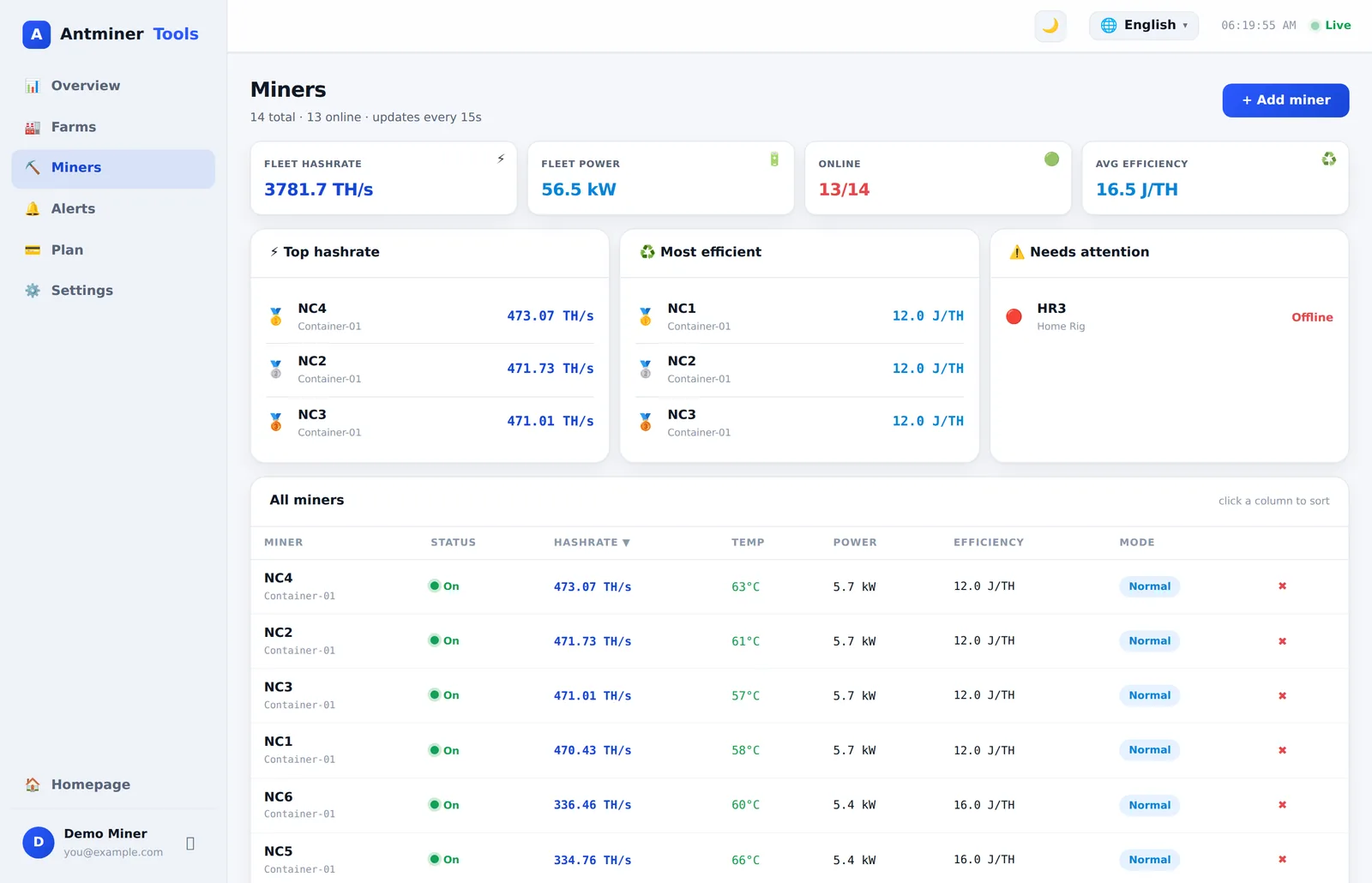
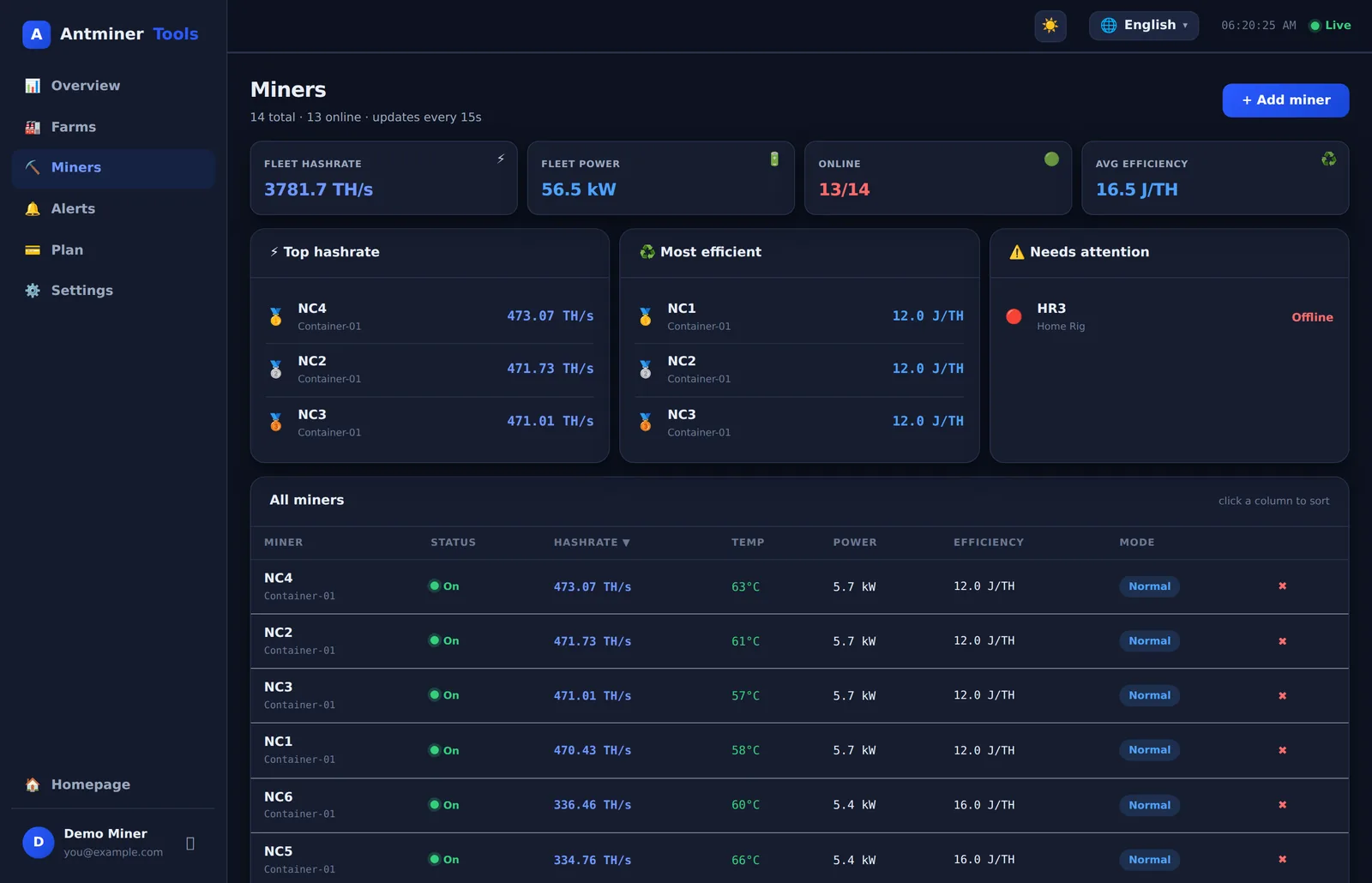
The Overview refreshes every 10 seconds and shows your whole fleet: miners online/offline, total hashrate, power draw, hottest temperature, BTC price and daily revenue & profit.
Miner detail
Click any miner to open its detail page: live 5-second and 30-minute hashrate, a 24-hour chart, per-chain chip & PCB temperatures, fan speeds (or water-cooled detection), power, efficiency in J/TH, uptime, firmware, serial, and live pool status with accepted/rejected shares.
Farm view
Each farm card shows total hashrate and power, plus a temperature health badge: green Normal, amber Warm, and a flashing red 🔥 ABNORMAL alarm if any miner hits 85 °C. Tap the miner count to open a live popup of every miner in that farm.
Remote control
Every miner’s detail page has a control panel:
- 🔄 Reboot — restart a frozen miner from anywhere.
- ▶ Normal / 😴 Sleep / 🚀 Turbo / 🌿 Eco — switch work modes. Sleep during expensive power hours, Eco to cut heat, Turbo when profit is high.
- 💡 Blink LED — flash the light to find a unit in the rack.
- 🔃 Refresh stats — force an immediate poll.
To reboot many at once, the farm card’s “🔄 Restart” button opens a panel with every miner’s current hashrate, 24-hour average and last-seen time — restart one, or Restart ALL with one click.
Alerts & automation
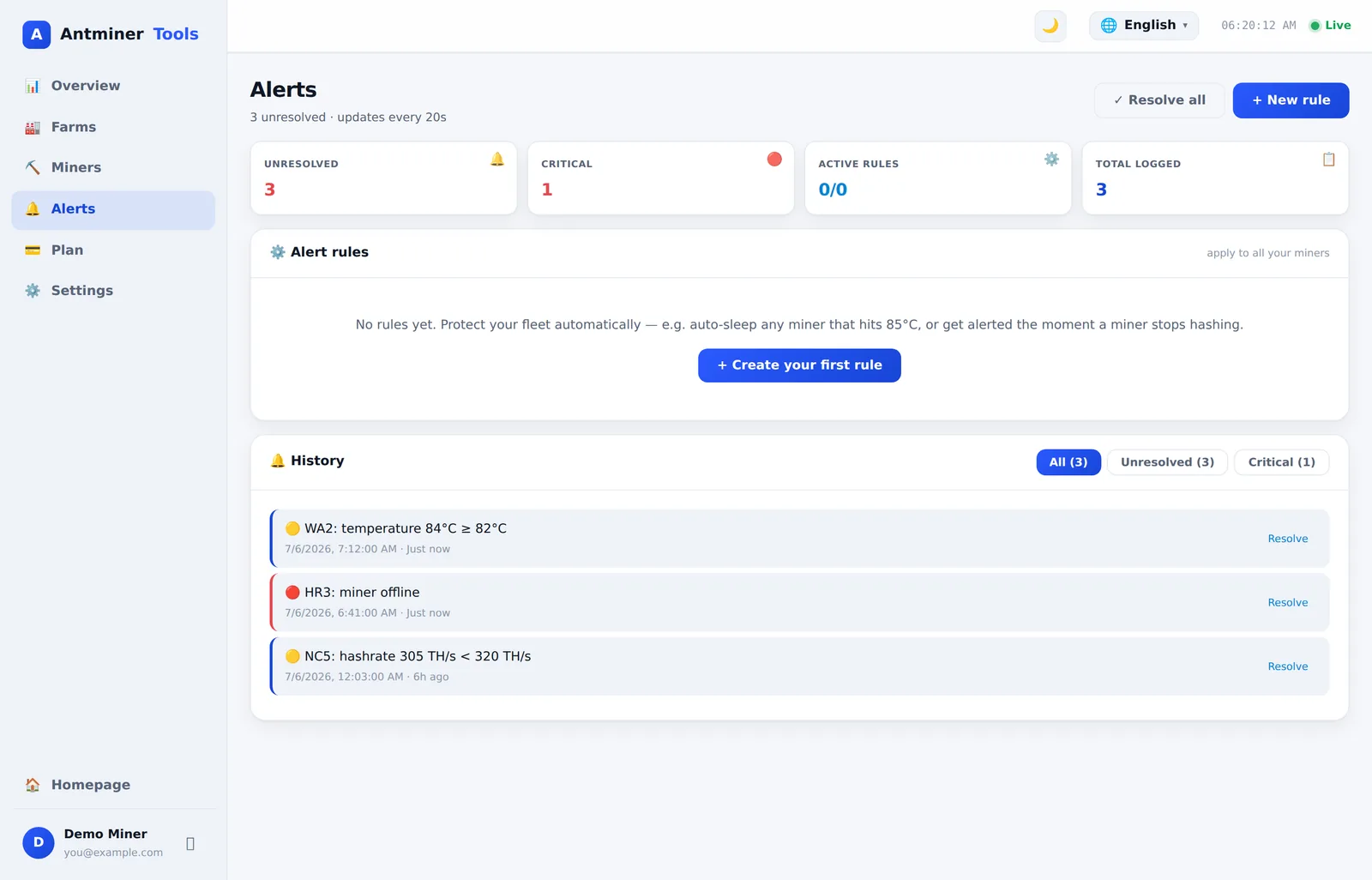
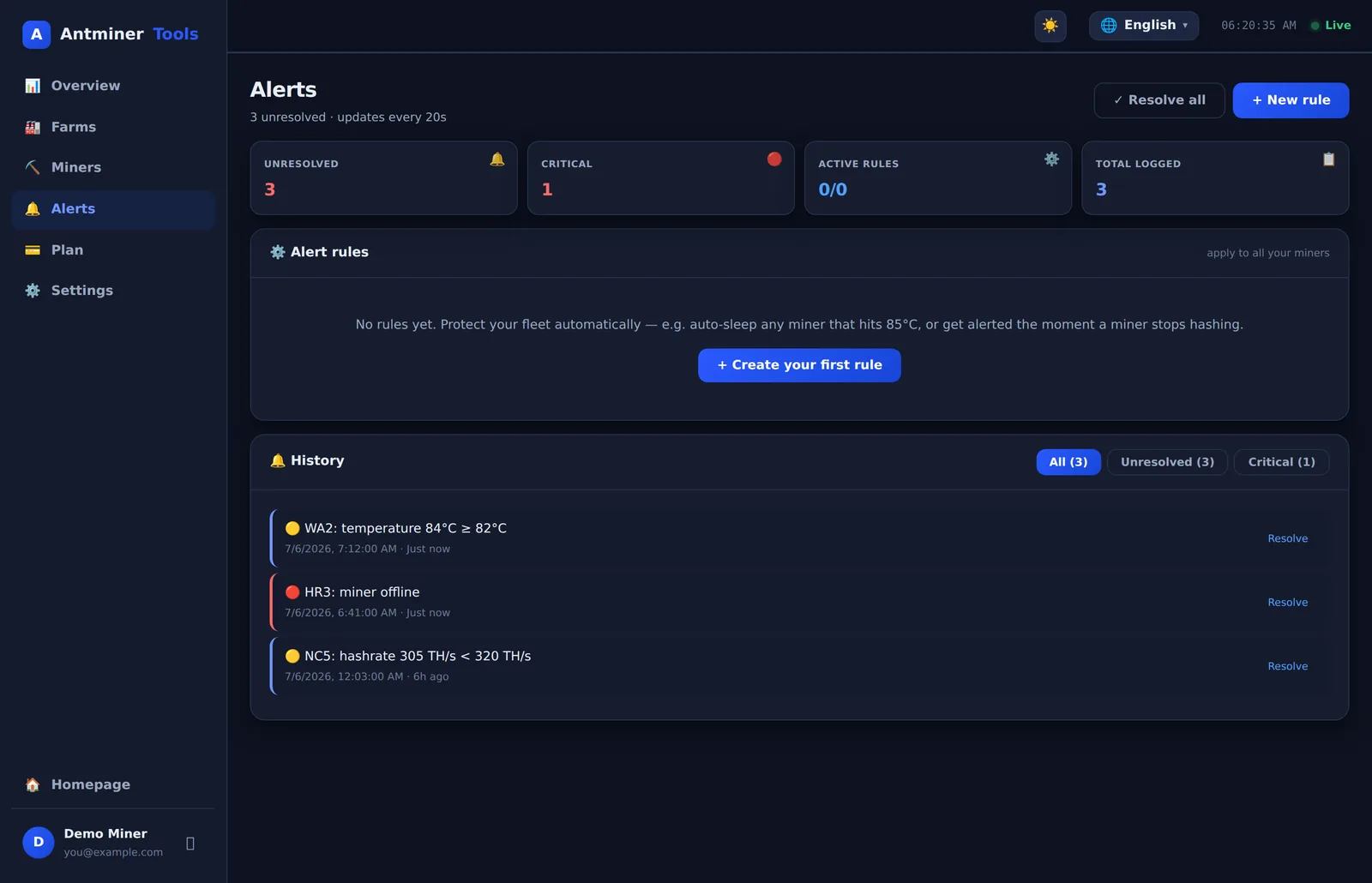
Go to Alerts → “+ New rule”. Pick a trigger, a threshold, and an action:
Triggers
- 🌡️ Temperature above threshold (e.g. 85 °C)
- ⚠️ Hashrate drops to zero (miner hung or lost its pool)
- 📉 Hashrate below threshold (degrading hashboard)
- 🔌 Miner goes offline
Actions
- 📨 Alert only — logged on your Alerts page.
- 😴 Auto-sleep — automatically puts an overheating miner to sleep before it damages a hashboard.
- 🔄 Auto-restart — reboots a stuck miner with no manual action.
Rules apply to all your miners, are checked on every poll, and have a configurable cooldown so you’re never spammed. On the Unlimited plan, alerts are also sent to your email.
Remote desktop · Unlimited plan
On the Unlimited plan, connected farm cards show a “🖥️ Remote” button. Click it to open your farm PC’s full desktop right in the dashboard — move the mouse, type, edit configs, reboot Windows — from anywhere. It works through the same agent tunnel, so there’s still no port forwarding, and nothing extra to install.
- Click and type to control the PC; use the Ctrl+Alt+Del button when needed.
- On mobile, tap to click and use the ⌨ Keys button for the on-screen keyboard.
- Each session is private to your account and ends when you close the window; every session is logged.
Profitability & currency
In Settings → Mining economics, choose your display currency (166 available, updated hourly from live exchange rates) and enter your electricity price and pool fee. The Overview then shows true daily revenue, electricity cost and profit — per day, week, month and year — plus your break-even electricity price and cost per BTC mined, computed live from network difficulty and BTC price.
The profitability calculator lets you play what-if scenarios (different power price, more miners) without changing your saved settings.
Plans & billing
| Plan | Price | Farms | Miners | Email alerts | Remote desktop |
|---|---|---|---|---|---|
| Free | $0 | 1 | 4 | — | — |
| Starter | $3/mo | 2 | 10 | — | — |
| Pro | $6/mo | 5 | 20 | — | — |
| Unlimited | $10/mo | ∞ | ∞ | ✓ | ✓ |
Upgrading
Upgrades apply immediately. Before any charge you’re shown the exact prorated amount and asked to confirm; your new limits unlock the moment payment succeeds.
Downgrading
Downgrades are scheduled for the end of your current billing period — you keep your current plan and all its features until then, at no extra charge. The Plans page shows the exact date and marks your next plan. You can cancel a scheduled downgrade any time with “Keep [current plan]”.
Payment & history
Payments are handled securely by Stripe — card details never touch our servers. On the Plans page you can see the card on file and update it, and view your full order history with downloadable receipts. Cancel anytime; your miners and history are never deleted when you change plans.
Security
- Outbound-only tunnel — the agent dials out over TLS (the same port as HTTPS). Nothing on your network listens for incoming connections.
- Per-farm tokens — each farm authenticates with its own signed token you can revoke and regenerate any time.
- Encrypted credentials — miner passwords are encrypted at rest with AES-256-GCM and only decrypted in memory when relaying a command.
- Resilient — automatic reconnection with backoff and multiple relay endpoints with failover keep your dashboard alive through ISP and CDN hiccups.
Supported miners
Every Bitmain Antminer running stock firmware with the standard web interface: the S23, S21 family (including XP and Hydro), S19 family, T21, L9, L7, Kaspa KS5/KS7, KA3 and more. Hydro and immersion models get special handling for water-cooled temperature sensors and no-fan detection. Third-party firmware that keeps the Bitmain-compatible API generally works too.
Troubleshooting
Farm shows “Offline”
The agent isn’t running or can’t reach the internet. On the farm PC, make sure the agent window/service is running (python antminer_agent.py --status), and that the PC has internet. The agent auto-reconnects once connectivity returns.
Scan finds nothing
Check the subnet matches your miners (the scan auto-detects it, but you can edit it), and that the login is correct (default root/root). The agent PC must be on the same LAN as the miners.
A miner shows offline but is hashing
Its web API may be unreachable or the credentials changed. Open the miner’s IP directly on the LAN to confirm, and update its username/password in AntminerTools if needed.
Can’t delete a farm
Switch off the agent on that farm’s PC first, wait about 90 seconds for the card to show Offline, then delete. This prevents a still-running agent from re-appearing as a ghost.
Remote desktop won’t start
It requires the Unlimited plan and a connected agent. The first launch installs a screen-capture helper (~15 s). On a headless Raspberry Pi with no desktop, remote desktop isn’t available.
FAQ
Do I need to open ports or use a VPN?
No. The agent makes an outbound connection only — it works behind any router, CGNAT, 4G/5G or Starlink with zero network configuration.
Does it work on my phone?
Yes — the whole dashboard is fully responsive. You can monitor, get alerts, reboot miners, manage billing and even remote-desktop from a phone.
How often do stats update?
Every 15 seconds per online miner; the dashboard refreshes the display every 10 seconds.
Is there a free plan?
Yes — 1 farm and up to 4 miners with full monitoring, remote control and dashboard alerts. Paid plans add capacity and features.
Still stuck? Create an account and reach out from your dashboard, or read the blog for guides and tips.